
Your team prepares vendor payments in Microsoft Dynamics 365 Business Central. But if balances are checked in four banking portals, payment files are uploaded separately and statements are collected afterwards, the process is still fragmented.
Consider an enterprise that collects customer receipts at HDFC Bank, makes vendor payments from ICICI Bank, manages working capital through SBI and holds project funds at Axis Bank. Business Central may already record the bills, payment journals and ledger entries. The finance team still needs one reliable view of cash and payment outcomes across those accounts.
The real question isn’t whether Business Central can reconcile a statement. It’s how the statement arrives, how approved payments reach the right bank and how each transaction traces back to the books.
OPEN’s Business Central extension is built for exactly that. It brings balances and statement lines from connected bank accounts into Business Central and sends approved payments to the bank through OPEN, with each bank’s own authorisation steps still in place.
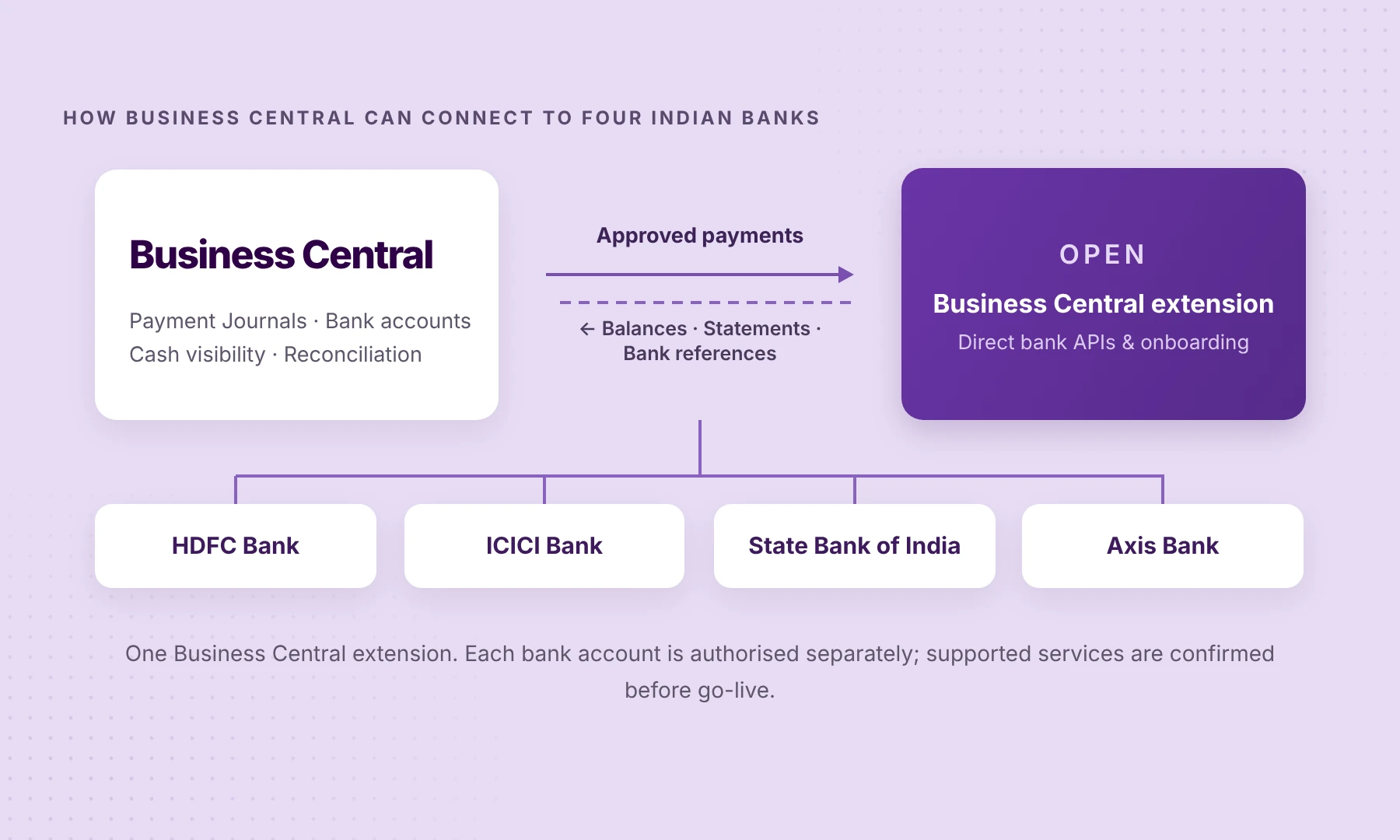
What changes when the banks are connected?
With a supported integration, finance teams can bring bank information into Business Central without treating each portal as a separate source of truth. Instead of downloading a statement, importing it and following up on a payment by email, teams can work with connected data and payment references alongside the records they already maintain.
That can improve three day-to-day decisions: which account has funds available, which approved payment has actually been processed, and which statement line still needs attention.
Business Central continues to own the accounting. OPEN handles the available banking connectivity through its Business Central extension. Availability is confirmed for each bank, account and service before setup.
How do you connect the four banks to Business Central?
The implementation should begin with the accounts and outcomes your finance team needs—not merely an installation checklist.
01 · Map accounts to the right Business Central companies
List the HDFC, ICICI, SBI and Axis accounts in scope, their owning legal entities and the corresponding Bank Account Cards. Confirm posting groups, payment journals and which team can see or transact on each account. Multiple Business Central companies need explicit mapping and access decisions.
02 · Complete the banks’ authorisation requirements
Each account must be enabled for the services it will use. Access to balances and statements is different from authority to initiate payments. The signatory, corporate banking arrangement and required bank approvals should be confirmed before treating any connection as ready.
03 · Set up OPEN’s Business Central extension
OPEN’s integration page describes statement lines and balances entering Business Central, approved payment instructions being sent through OPEN, and settled-payment references returning to the ERP. The exact setup should be agreed with your Business Central partner, including payment controls, field mapping, supported bank services and how failed syncs are handled.
04 · Test a complete payment and reconciliation cycle
Start with a small number of representative accounts. Fetch balances and bring in a statement. Where the bank supports it, send a properly authorised test payment, check the bank reference that comes back and confirm how the transaction is matched or reviewed in Business Central. A successful connection is only the first step; the end-to-end workflow is the real test.
HDFC, ICICI, SBI and Axis: what should you confirm?
OPEN lists direct API connectivity for all four banks. But bank coverage and service availability are not interchangeable. Confirm the exact accounts, payment permissions and response data relevant to your organisation.
| Bank | Typical use (example) | Confirm before rollout |
|---|---|---|
| HDFC Bank | Accounts used for receipts or operating payments | Balance and statement access, payout permissions, onboarding steps |
| ICICI Bank | Vendor-payment or operating accounts | Payment workflow, approvals and returned bank references |
| State Bank of India | Operating or working-capital accounts | Account type, data availability and authorised services |
| Axis Bank | Project, collections or operating accounts | Statement availability, payment access and support for the required account |
What if you already import statements or export payment files?
You may not need to replace what already works. Business Central supports bank statement imports and Payment Journal exports, and some organisations have reliable bank-specific arrangements in place. A common integration is most valuable where multiple accounts create repeated manual steps or where the team needs better visibility between payment preparation and bank execution.
In particular, exporting a payment file is not the same as sending it to the bank. Microsoft’s payments documentation describes exporting a bank file that you then upload to your bank for processing. Any new approach should be assessed against the actual submission, authorisation and reconciliation workflow.
Find out what connecting your banks to Business Central would involve.
Share your bank list, the Business Central companies involved and the workflows you want to bring into the ERP. We’ll help establish what is supported, which bank authorisations are needed and where a sensible pilot should begin.
What should your first pilot prove?
A useful pilot should answer five questions:
- Bank access. Can the required accounts be authorised for the services you need?
- Company mapping. Do balances and statements arrive in the correct Business Central company?
- Payment controls. Does an approved payment follow the intended approval rules?
- Payment visibility. Is the bank’s processing or settlement reference visible where supported?
- Reconciliation. Can finance reconcile the resulting transaction without unclear manual steps?
These are practical acceptance criteria for the CFO, Finance Controller and Business Central project owner—not a promise that every bank behaves identically.
Questions enterprise teams usually ask
Do we need to move our accounts or replace Business Central?
No. Your bank accounts remain with their existing banks. The goal is to connect supported banking services with the Business Central environment you already use.
Will the extension automatically reconcile every transaction?
No. It can deliver supported bank information to Business Central; matching, posting and exception handling still depend on Business Central configuration and finance review.
Can we send payments through the integration?
OPEN’s Business Central extension supports transmission of approved payments. Actual bank-account permissions, approval rules and supported payment services must be verified during scoping.
Can we connect several legal entities?
Potentially, with the correct account-to-company mapping, permissions and implementation design. A multi-company deployment should be explicitly included in the scope and tested.
Want the technical background? Read Microsoft Dynamics 365 Business Central Bank Connectivity in India: Beyond Statement Imports for the deeper comparison of statement imports, bank-specific connections and API-led connectivity.
Find out how OPEN could connect your banks to Business Central.
Share your Business Central setup, the banks involved and the workflows you want to connect. We’ll assess supported services, the approvals required and a practical starting point for your integration.
Product & technical references
- OPEN Connected Banking — bank coverage and service overview
- OPEN for Business Central — extension capabilities
- Business Central Bank Connectivity in India — educational architecture guide
- Microsoft Learn: Make payments — exporting payment files from Business Central
- Microsoft Learn: Set up banking — Business Central banking options